Connect to Windows VPS via VNC
Learn how to access your Windows VPS via VNC (Virtual Network Computing) to troubleshoot RDP connection issues. The VNC console allows direct screen access even when sessions are locked.
Your Windows VPS is accessible via Remote Desktop Protocol (RDP). However, if you encounter RDP connection problems, you can use VNC to directly access your VPS console.
VNC (Virtual Network Computing) allows you to see and interact with your VPS desktop as if you were physically in front of it.
- Local access bypassing firewalls or network restrictions.
- Direct console access, even if RDP is blocked.
- Useful for unlocking a Windows session or resolving connection issues.
- Allows you to manage the VPS without depending on RDP.
- Allows you to change screen resolution and other graphics settings.
1. Access the client area
Log in to your ElypseCloud client area.
2. Go to the services section
In the left sidebar, click My Services to display your list of services.
3. Select your Windows VPS
Click Manage on the line corresponding to your Windows VPS.
You have two options to access the VNC console:
Option 1: Via the integrated panel
Wait a few seconds for the panel iframe to load at the bottom of the page. Once loaded, you will have direct access to your VPS controls.
Option 2: Via the complete panel
Click the Enduser Panel button in the top right to access the complete VPS management interface.
You will be redirected to the complete panel where you must select your Windows VPS from the list of servers.
4. Access the VNC console
In the panel (integrated or complete), locate this button:
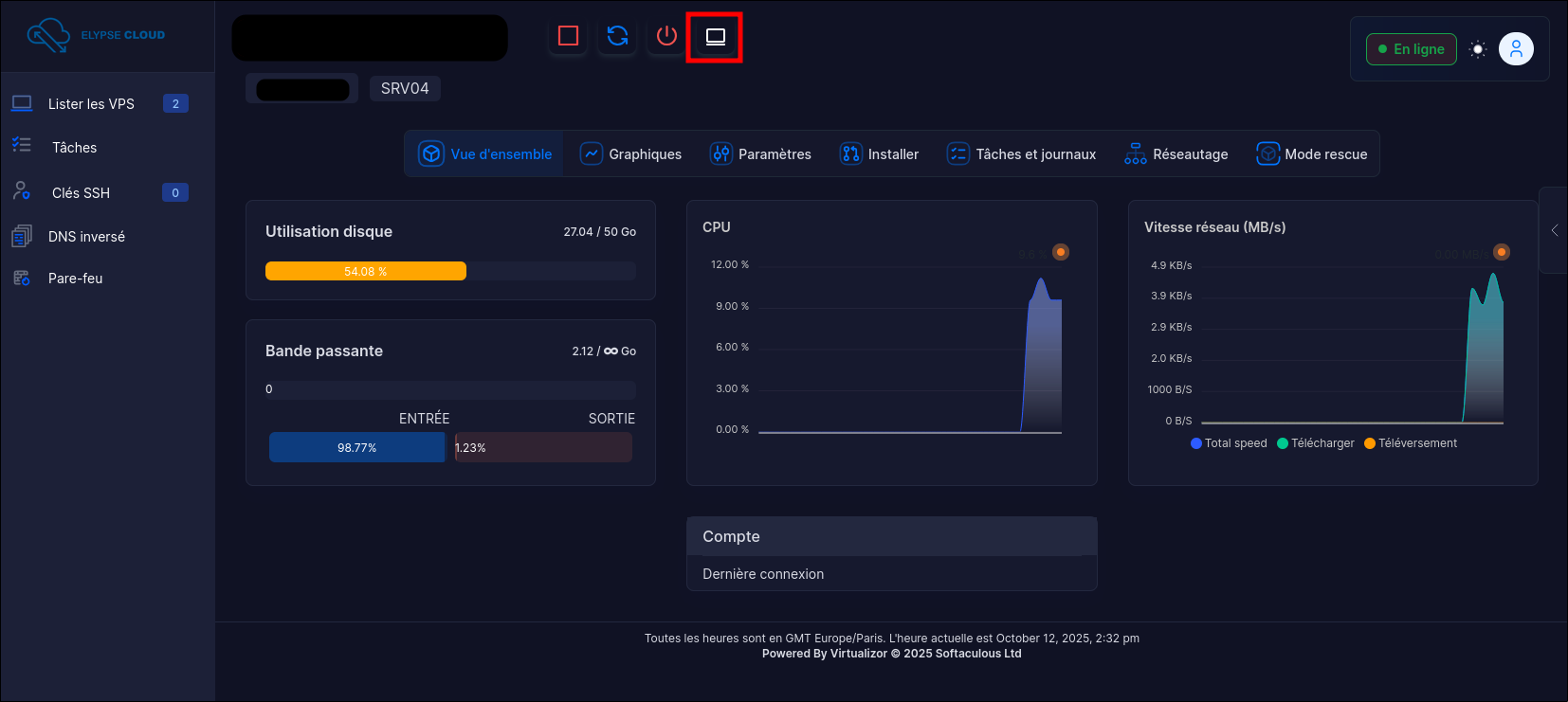
Click it to open the intermediate popup.
5. Open the VNC connection
In the popup, click Launch VNC to open the VNC connection in a new tab.
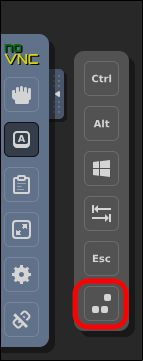
6. Send `Ctrl+Alt+Delete
In the new window that opens, access the left sidebar and click the button with the keyboard key
A as in the image below:
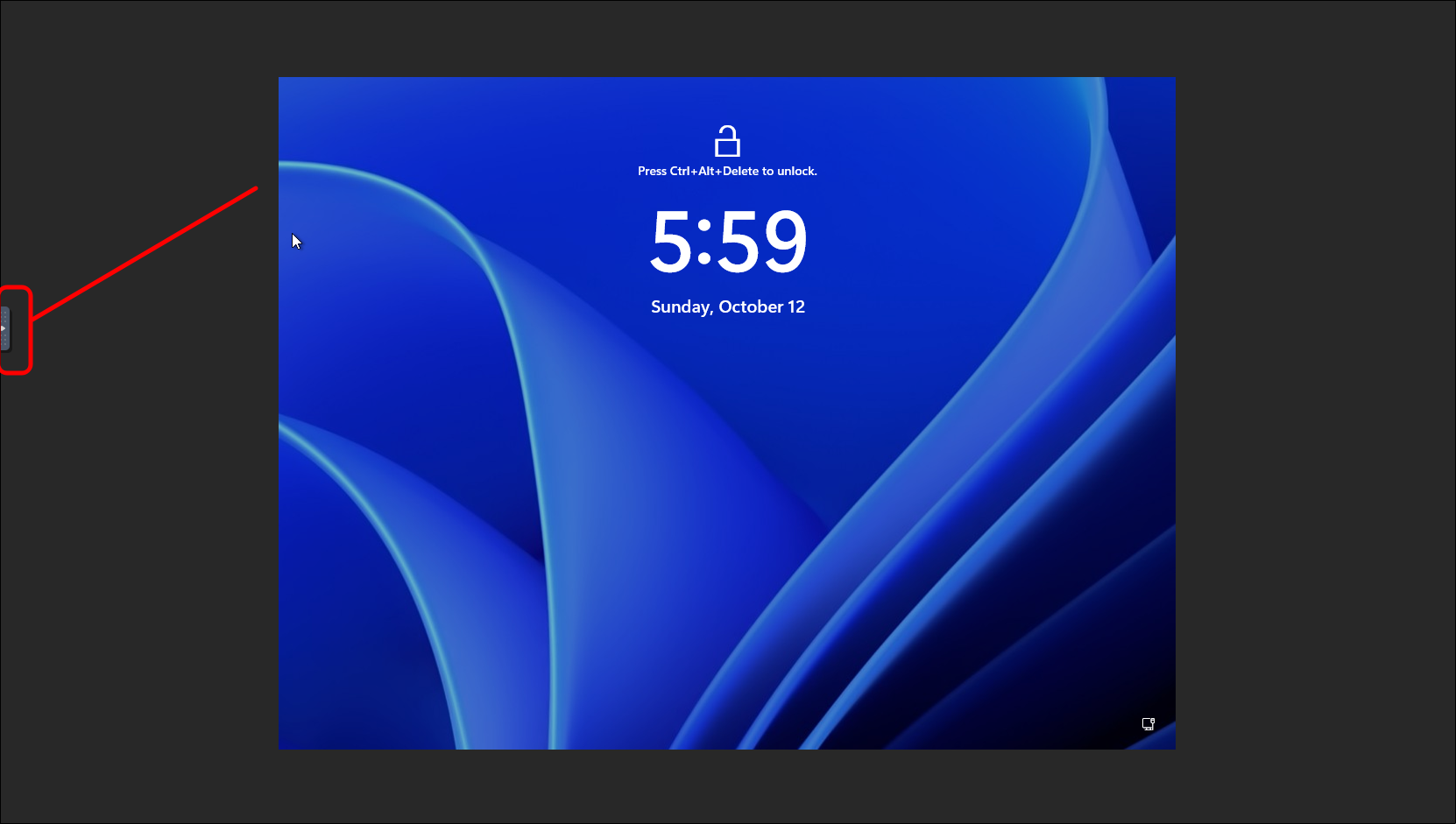
Then click the button as in the image below:
7. Log in to Windows
You should now see the Windows login screen. Enter your credentials to access your VPS.
It is not possible to copy/paste a password in the console by pressing Ctrl+V.
You must go through the clipboard icon in the left sidebar to paste your password in the text area then
click Paste to paste the password into the VNC console.
🎉 Congratulations
You are now connected to your Windows VPS via VNC! You can manage your server as if you were in front of it.
If you encounter any issues, open a ticket on our discord.